6 DNS Commands You Need to Know

DNS is the internet’s address book. When something breaks or behaves unexpectedly a few simple command-line checks can save time and help you quickly identify whether the issue is DNS, hosting, or network-related.
If you’re new to DNS fundamentals, this guide pairs well with DNS records explained.
When these commands are most useful
- You’ve updated DNS records and want to confirm what’s live.
- Email isn’t working and you need to validate MX or TXT records.
- A website loads for some users but not others.
- You’re troubleshooting a suspected outage.
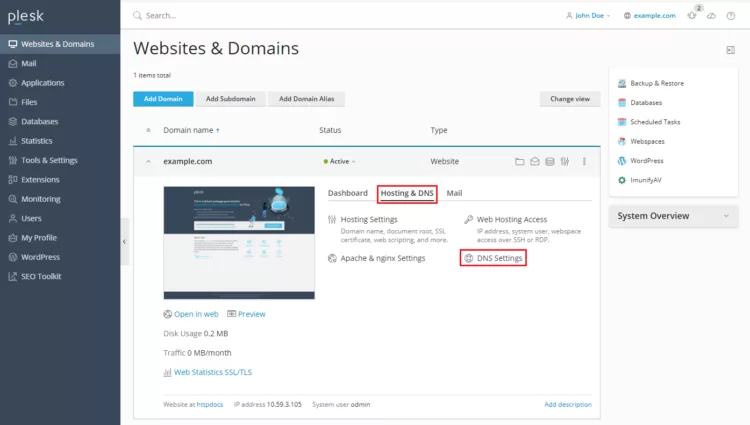
A reliable DNS setup helps reduce these issues. Learn more about EuroDNS DNS services.
1) dig: the most powerful DNS lookup tool
dig (Domain Information Groper) queries DNS records directly and shows detailed responses, making it ideal for troubleshooting propagation, TTL values, and record mismatches.
Examples
dig example.com
dig MX example.com
dig TXT example.com
Query a specific resolver
dig example.com @1.1.1.1
dig example.com @8.8.8.8
2) nslookup: fast DNS checks on most systems
nslookup is widely available and useful for quick checks when dig isn’t installed.
nslookup example.com
nslookup -type=MX example.com
3) whois: check domain ownership and expiry
whois shows domain registration data such as registrar, status, and expiration date: useful when diagnosing sudden website or email issues.
whois example.comYou can also use the browser-based EuroDNS WHOIS search.

Domain expiry is a common cause of downtime. Learn why it matters in this guide to missed domain renewals.
4) ping: test reachability
ping checks whether a host responds on the network. While it’s not a DNS diagnostic tool on its own, it helps distinguish DNS issues from connectivity problems.
ping example.comNote: Some servers block ping requests for security reasons, so a failed response doesn’t always mean the site is down.
5) traceroute / tracert: trace the network path
These commands show the path traffic takes to reach a destination, helping you identify where delays or failures occur.
traceroute example.comtracert example.com6) host: simple and readable DNS lookups
host provides clean, easy-to-read DNS responses and is useful for quick validations.
host example.com
host -t MX example.com
When DNS commands aren’t enough
DNS results can vary due to caching, TTL values, or resolver location. If results seem inconsistent:
- Test multiple public resolvers.
- Wait for cache expiration.
- Confirm records in your DNS provider dashboard.
EuroDNS offers Anycast DNS and Premium Anycast DNS for improved reliability and performance.
Best practices for DNS troubleshooting
- Check the correct record type for the issue.
- Document every change you make.
- Restrict access to domain management tools.
- Enable DNSSEC when appropriate.
For more security guidance, see domain security best practices and how DNSSEC protects your domain.
Next steps
- Secure your domain using the EuroDNS domain name search.
- Check multiple ideas with Bulk domain search.
- Improve performance and resilience with EuroDNS DNS services.
Note: Command availability and output may vary by operating system. Always test changes carefully on production systems.
Top Domains for Musicians: Hit the Right Note Online
TLD Price Changes Starting March 2026
Related articles: